
Introduction
SpeedEase Video DVD Copy, a popular application that lets you convert an entire DVD onto your computer’s hard drive. This application is frequently updated, and best of all it’s not hard to use. AVI is a container format capable of holding many codecs and is for a long time to come the video standard on Windows in the post-production community. If you have a large collection of classic movies, converting them into AVI files would a good choice for backup & distribution.
Step 1. Load DVD
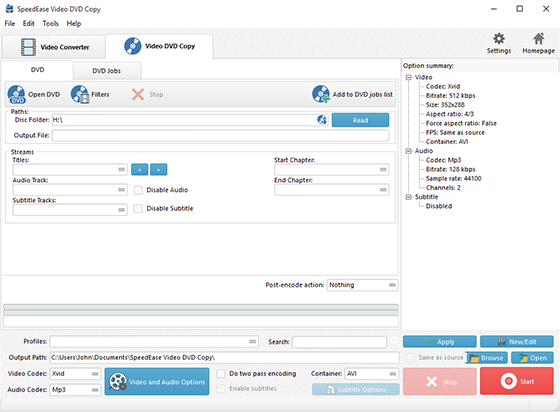
Click “Open DVD” and in the popped up window, choose the DVD drive in your system. After that, click “Add to DVD jobs list”.
Step 2. Select the Title & Choose Output Format
After loading, all available titles of the DVD will be listed in the window. Now select the titles you want to rip. You can choose any chapter of the titles to rip from “Start Chapter” and “End Chapter”. Audio track and subtitles are also optional to rip for multilanguage DVD. In “Profiles” menu, choose “AVI” as the output format.
Step 3. Start Ripping
Click “Start” to start DVD ripping and you can find the ripped files by clicking “Open”.