What would you do if you lost your entire movie collection? Wouldn't it be nice to have some backups lying in your computer in case someone scratched your precious Rudy video or your dog ate an entire season of the Simpsons? SpeedEase Video DVD Copy is the right tool to get things done.
Download
SpeedEase Video DVD Copy
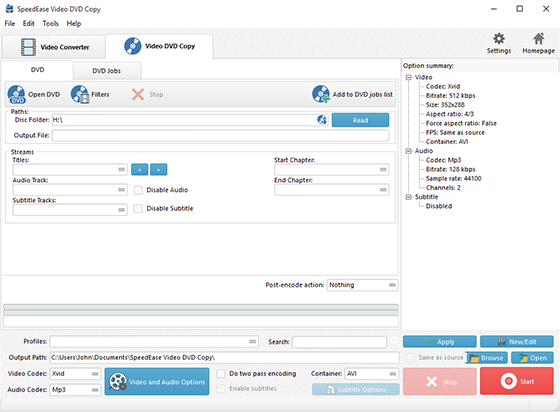
Launch SpeedEase Video DVD Copy and insert
a movie DVD to the disc driver. Click "Add DVD"
or "Add DVD Folder"
to add the video to the task window.

Step 2. Choose What You Want to Copy
Then, the available titles of the disc
will be displayed in a title list. You can choose titles
from the list and select Audio Track
& Subtitle
or disable them as needed. Enter the number of the starting and
ending chapters to choose any chapter
of the titles to copy. You can preview the whole DVD or the selected
title with our built-in DVD player
.
You are allowed to take a snapshot
of the scene displayed in the preview window as BMP or JPEG format.

Step 3. Customize Output Settings
Activate "Copy as"
menu and three tabs: "Video", "Devices" & "Audio", containing various
supported formats, are displayed. Click any tab and choose an output
format as needed. For specific needs, you can adjust the output
quality with the well-configured presets for every format in the
"Preset" dropdown list
.
Click "Browse"
to choose an output folder to backup the copied movies. Then, click
"Start" to start copy
.

After you hit "Start", a progress window
will be displayed within just few seconds. The post-process options
can be chose to play a sound or shutdown the computer when the copy
is finished.

When the window disappears, the DVD movie
has been successfully copied. If needed, click "Find Target"
to directly open the output folder to get the copied DVD movies.