Introduction
Purchasing a music CD does not means that you own it permanently because of some accidental physical damage or data loss. What you should do is to get a backup for it. Magic Burning Toolbox provides an audio CD ripper tool that lets you copy the music tracks and save them to your computer hard drive.
Step 1. Launch Audio CD Grabber
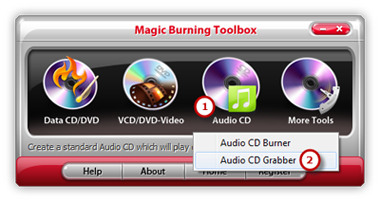
Launch Magic Burning Toolbox. Insert an audio CD to the CD drive, click “Audio CD” and choose “Audio CD Grabber” to run the audio burner wizard.
Step 2. Select Usable Ripping Drive
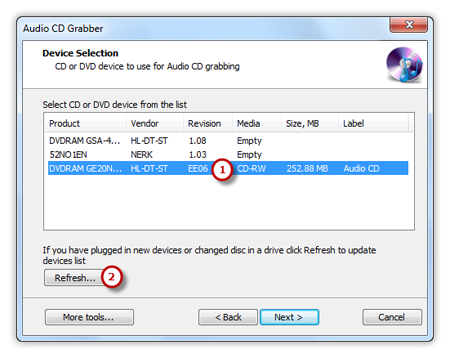
The ripper will scan your system and list the available devices. Choose one of the usable ripping drives from the list (the system will select it by default if there is only one). The “Refresh” button is provided to help you update the devices list in case you plug in new devices or changed disc in the drive.
Step 3. Define an Output Folder
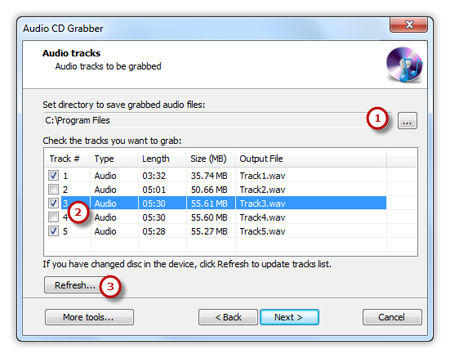
Click the square button to select an output folder for saving the ripped audio files. Then you can check the listed audio tracks you want to rip . If you have changed disc in the drive, just click “Refresh” to update tracks list.
Step 4. Choose Compression Type
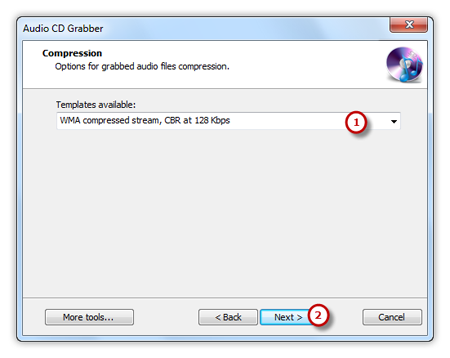
Choose one of the compression types from the available templates to fulfill your needs. Click “Next” to start ripping and wait until the process bar reaches 100%. The disc will eject after the audio CD has been completely ripped.