Introduction
Got some music files and want to burn an audio CD to enjoy in your CD player? Magic Burning Toolbox provides top quality music CD burning to burnWAV, MP3, WMA, ASF and OGG files to CD disc.
Step 1. Launch Audio CD Burner
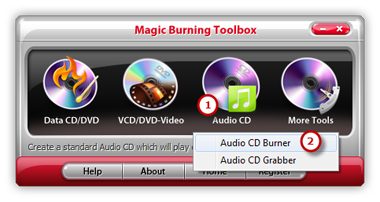
Launch Magic Burning Toolbox. Insert a blank CD to the CD drive, click “Audio CD” and choose “Audio CD Burner” to run the audio burner wizard.
Step 2. Select Usable Burning Device
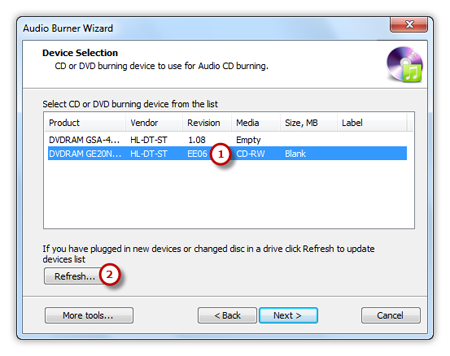
The burner will scan your system and list the available devices. Choose one of the usable burning drives from the list (the system will select it by default if there is only one). The “Refresh” button is provided to help you update the devices list in case you plug in new devices or changed disc in the drive.
Step 3. Add Audio Files
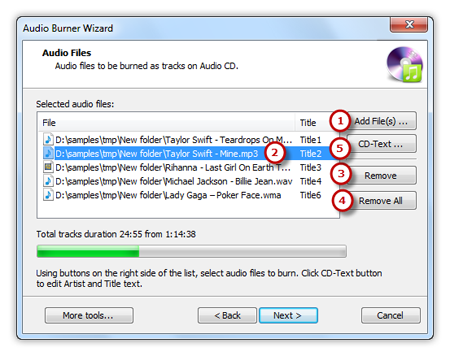
Click “Add Files” button to add audio files to the burning list. There are The detailed information of the added files will be displayed. Click “Remove” or “Remove All” button to remove one or all audio files. You can use CD-Text to edit title & artist text.
Step 4. Select Burning Mode and Burning Speed
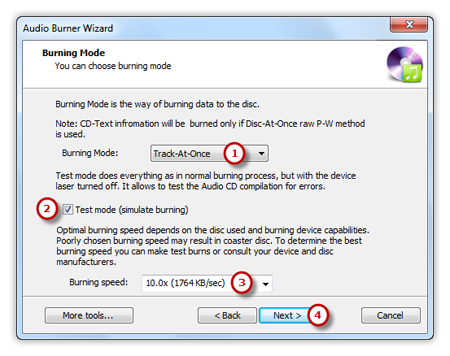
Select one burning mode from the Track-AT-Once, Session Track-AT-Once, Disc-AT-Once PQ and Disc-AT-Once raw P-W as needed . You are allowed to use Test Mode to simulate burning for checking errors. Then, choose the appropriate burning speed . Click “Next” to start burning and wait until the process bar reaches 100%. The disc will eject after the audio CD has been completely burned.