Introduction
SpeedEase Video Switch supports converting almost all kinds of video to the format that is playable on your mobile devices. There are also quality presets designed for different kinds of devices. If you have an iPod and want to enjoy some downloaded FLV videos from video sharing websites, you should definitely use SpeedEase Video Switch to work things out.
Step 1. Input Video Files
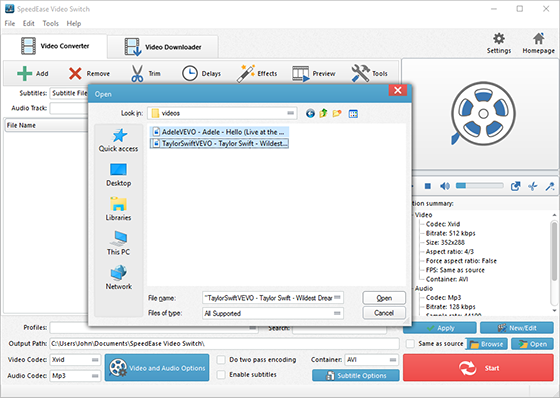
Click “Add” to import video files – to import one or more files, choose “Add Files”; to import a folder with video files, choose “Add Folder”; to import a folder with subfolder(s), choose “Add Folder Tree”. Then you can use “Up” & “Down” to change the order.
Step 2. Choose Quality Presets & Codec
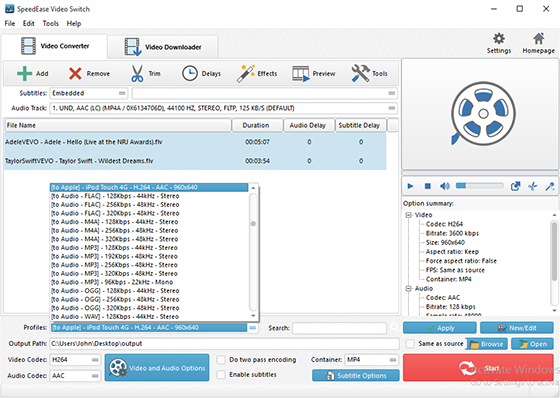
In “Profiles” menu, select “iPod” you want to play the video on and you can see the details of the profile you select in the “Option Summary” panel at the right. Or you can directly choose the format in “Container” menu. To edit the parameters of the profiles, click “New/Edit” and change the settings in the “Profile Editor” Window. You are allowed to choose the video and audio codec as well as the encoder to use. To change the codec settings, click “Video and Audio Options” and set the options as you want. Choose output path by “Browse”.
Step 3. Start Conversion
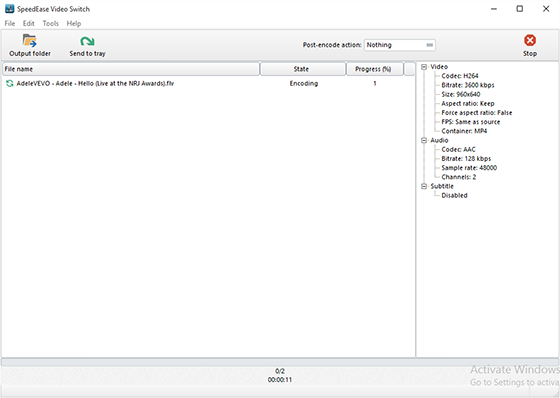
When all settings done, click “Encode” to start video conversion.
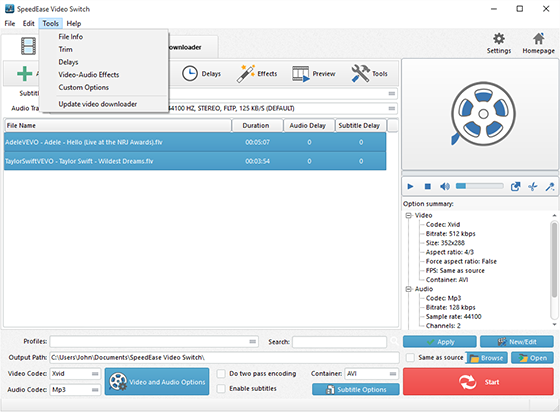
Click “Tools” button and you will find more functions that may come helpful: File Info, Delays, Video-Audio Effects, Load Scripts, Image and Audio to Video, Dub Video, Video to GIF and Watermark.