Introduction
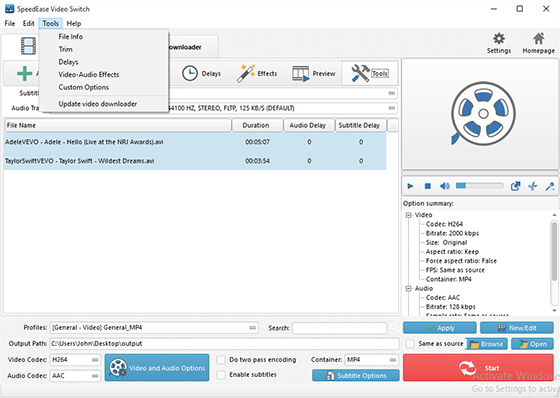
SpeedEase Video Switch is a program to perform almost every task for video conversion. If you are one of these Windows users who are looking for an all-in-one video converting tool with straight interface, SpeedEase Video Switch provides just that, allowing you to effortlessly convert video files!
Step 1. Input Video Files
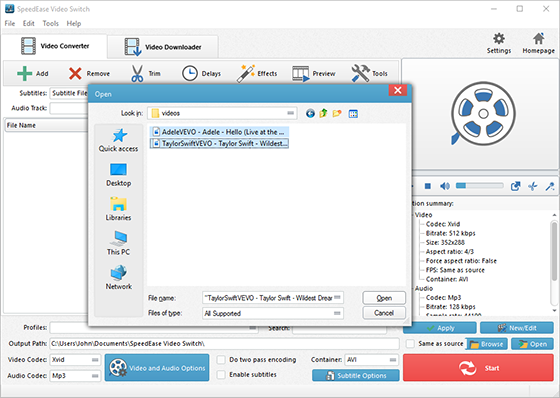
Click “Add” to import video files – to import one or more files, choose “Add Files”; to import a folder with video files, choose “Add Folder”; to import a folder with subfolder(s), choose “Add Folder Tree”. Then you can use “Up” & “Down” to change the order.
Step 2. Choose Quality Presets & Codec
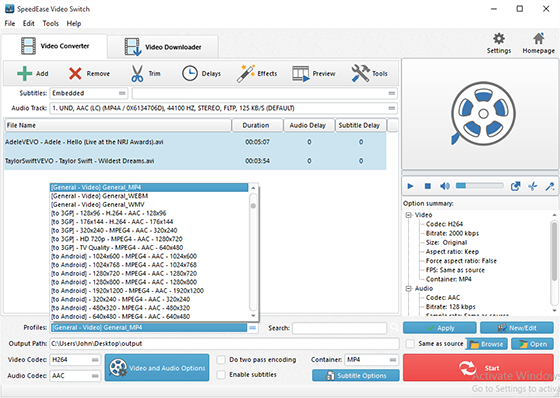
In “Profiles” menu, select the device you want to play the video on and you can see the details of the profile you select in the “Option Summary” panel at the right. If you know exactly the format your device supports, you can directly choose the output format in “Container” menu. To edit the parameters of the profiles, click “New/Edit” and change the settings in the “Profile Editor” Window. You are allowed to choose the video and audio codec as well as the encoder to use. To change the codec settings, click “Video and Audio Options” and set the options as you want. Choose output path by “Browse”.
Step 3. Start Conversion
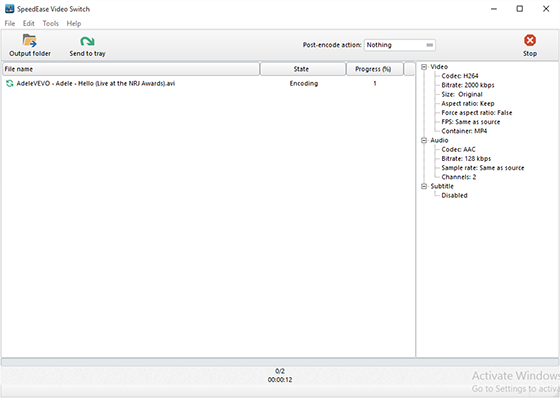
When all settings done, click “Encode” to start video conversion.