Introduction
Audio Convert Toolbox is also a video to audio converter to convert movies and music videos into sound. It could be very useful for the listening course of language learner and portable music player enjoyment.
Step 1. Input Video Files
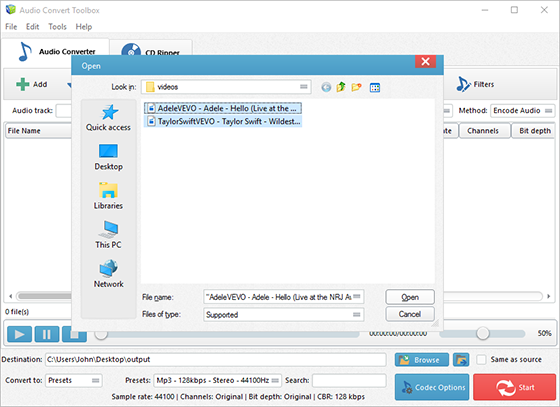
Click “Add” and 3 ways can be applied to add video files: “Add Files” is for one or more audio files; “Add Folder” is for the folder containing audio files; “Add Folder Tree” is for the folder along with its subfolders. Once the audio files are input, you can change their order by “Up” & “Down” or delete them from the list by “Remove”/”Clear”.
Step 2. Choose Quality Presets & Codec
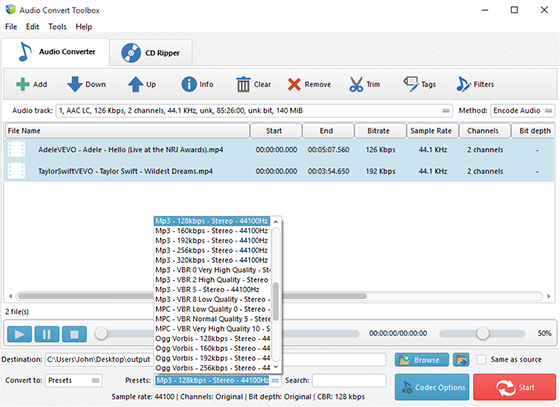
In the menu of “Settings Type”, select one conversion type from “Presets” and “Codec”. If “Presets” has been chosen, you will see a whole list of quality presets in the dropdown menu of “Presets” and choose “MP3”. To adjust codec settings, click “Codec Options”. To specify effects and filter settings, click “Filters”. After that, click “Browse” to choose an output folder for the converted audio files or check “Same as source” to save them in the source folder.
Step 3. Start Audio Conversion
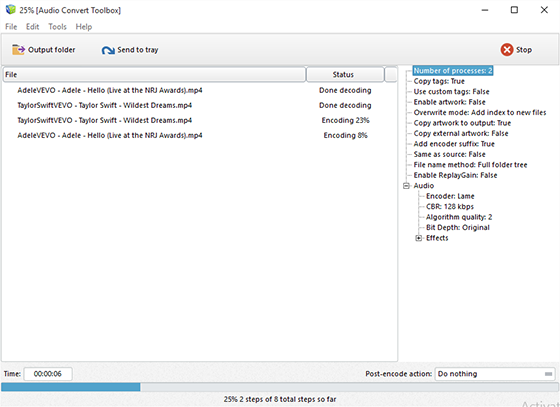
Now, start audio conversion by clicking “Start”. After conversion, you can click “Open” to open output folder to find the converted files.
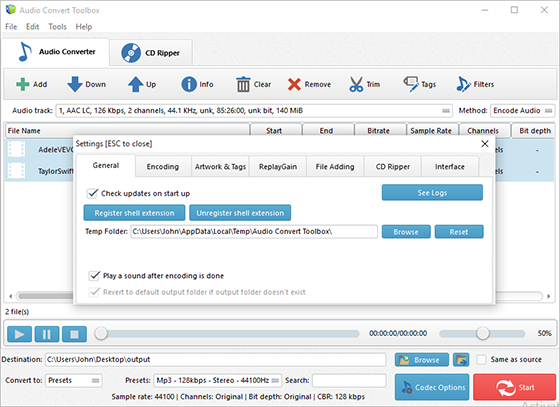
To find more advanced settings, click “Settings” and you will find more tools to help you:
General – check updates, register shell extension, choose temp folder and play reminder sound, check logs, etc.;
Encoding – set max parallel conversion processes allowed, enable trimming, keep logs, add encoder suffix, choose overwrite settings, etc.;
Artwork & Tags – extract artwork from audio or embed artwork to audio, resize artwork, copy tag, write tag, etc.;
ReplayGain – choose ReplayGain settings, prevent clipping, copy to lossless output from lossless source, etc.;
File Adding – use file length filter and format filter to filter out certain file types, use MediaInfo to read tags, etc.;
CD Ripper – enable jitter detection, enable paranoid mode, specify freedb server and user email and download album cover;
Interface – make the app always on top, show extra columns in file list and show text in toolbar buttons.