Introduction
If you’ve got a lot of protected WMA files you’d like to get on your iPod, for example, this solution would do the trick. Audio Record Edit Toolbox Pro is able to record DRM protected Windows Media streams (Note: before you record DRM protected audio content, please be sure you are authorized to do this).
Step 1. Activate Audio Recorder Window
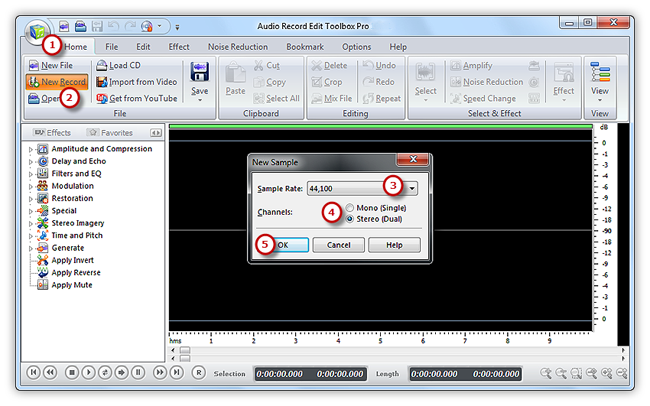
Launch Audio Record Edit Toolbox Pro. Click “Home” tab of the Ribbon Command Bar and click “New Record” to select recorder sample rate & channel and click “OK” to activate audio recorder window.
Step 2. Select Recording Device and Sound Source
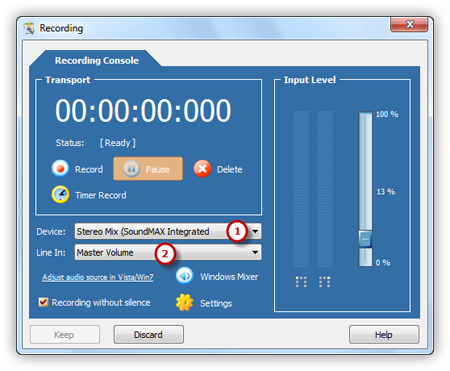
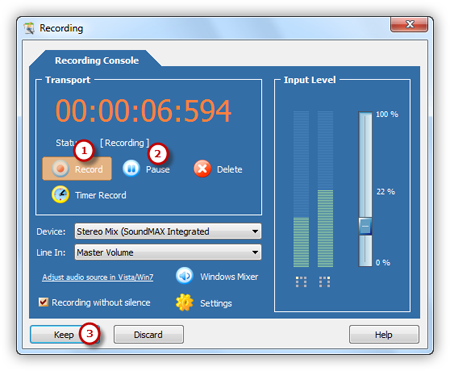
In the “Recording” window, choose “Stereo Mix” to record music being played in Windows Media Player and select a proper sound card.
Step 3. Adjust Recording Settings
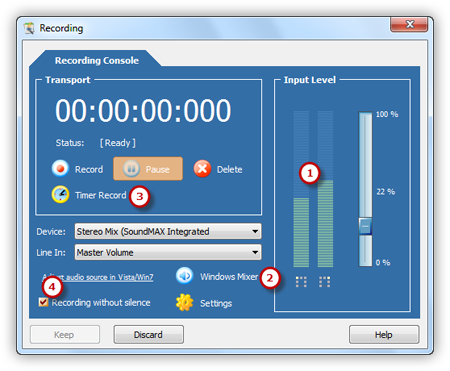
Now start the playback of the audio file that you want to record. Then you can see wave variations in the wave pattern. You can click “Windows Mixer” button to adjust the recording volume and recording balance. If the volume is too low, you can see only very small variations in the wave pattern. If the sound is being clipped off because the volume is too high, move the volume setting down until most of the volume range is displayed without clipping. Set a specific time by clicking “Timer Record” to automatically start recording. You also have the power to record without silence.
Step 4. Start Recording
After everything is set, please click the red round record button in audio recorder to start recording. To stop the recording, click “Pause”. Then, click “Keep” to input the recording to the waveform window of audio editor.
Step 5. Save the Changes
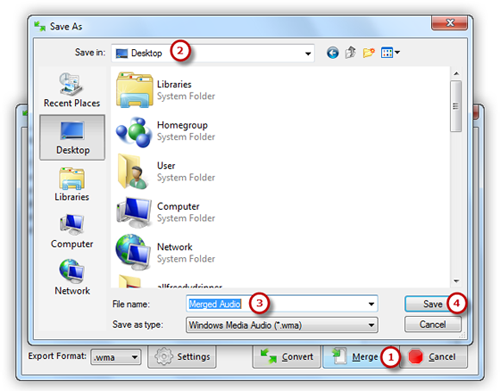
Now, the recording is displayed in the waveform window, you can use editing function to edit it or add audio effects to meet your demands. You can just go back to the “Home” tab and click the “Save” button to save the changes to the original file or click “Save File As” to save the changes with a different file name and/or location (After that you can select the output folder and format as well as adjust the output quality). Now, share your converted DRM music to friend or put MP3 music on portable media players!