Introduction
A Text-to-Speech (TTS) capability for a computer refers to the ability to play back text in a spoken voice. Audio Record Edit Toolbox provides a TTS system to convert normal language text into speech. If you want to insert some narration to an audiobook before each chapter, this could be practical.
Step 1. Input an Audio File
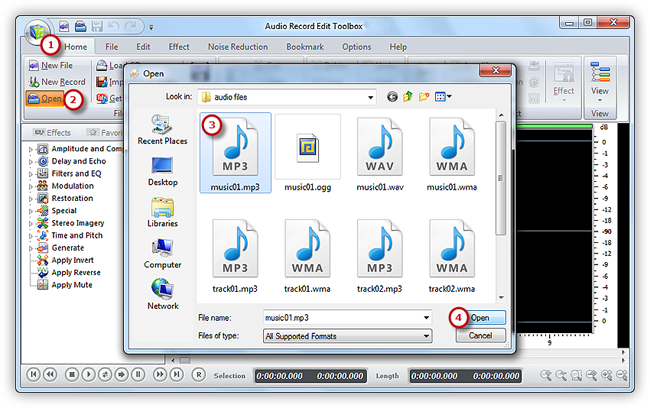
Launch Audio Record Edit Toolbox. Click “Home” tab of the Ribbon Command Bar and choose “Open” to activate a browser window, in which you can select an audio file from your computer . Then, click “Open” to input the audio file to program. (You can add more than one audio file to the task window to edit.)
Step 2. Activate the Text to Speech Tool
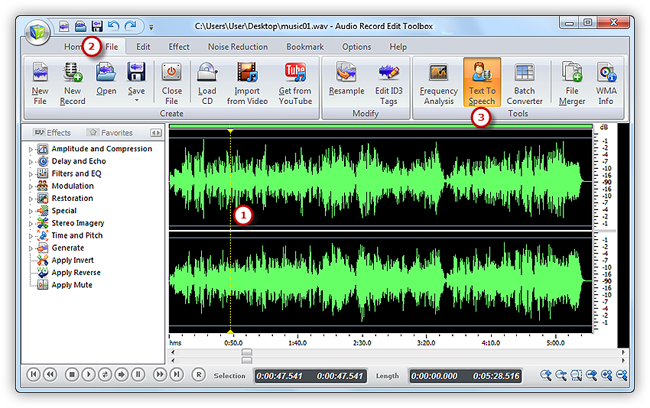
Now, the waveform of the file displays in the waveform window. Just left-click on the waveform to select an insertion point as needed. Then, click the “File” tab of the Ribbon Command Bar to choose “Text to Speech” to activate the TTS tool.
Step 3. Insert the Converted Speech
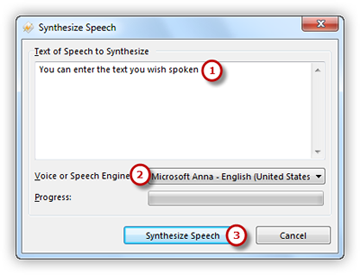
In the pop-up window you can enter the text you wish spoken. Choose the voice you need (Speech engine options could be added through adding more voice packages) . Click “Synthesis Speech” and within seconds the speech will be added to the selected point.
Step 4. Save the Changes
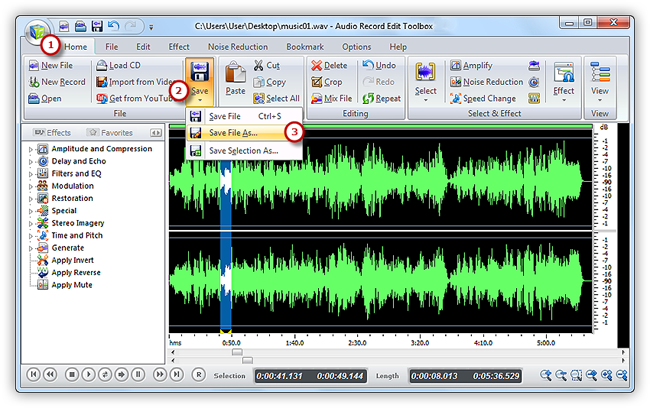
Now, the speech is displayed in the waveform window, you can use editing function to edit it or add audio effects to meet your demands. You can just go back to the “Home” tab and click the “Save” button to save the changes to the original file or click “Save As” to save the changes with a different file name and/or location (After that you can select the output folder and format as well as adjust the output quality). Now, play back text in a spoken voice with natural sounding voices.