Introduction
Sick of just watching streamed videos and audio tracks but not being able to save them? So are many others, and this demand has given rise to nearly a dozen utilities that will record them to your PC. Audio Recorder for Free is audio recorder software that is able to directly record any streaming sound
Step 1. Select Recording Device and Sound Source
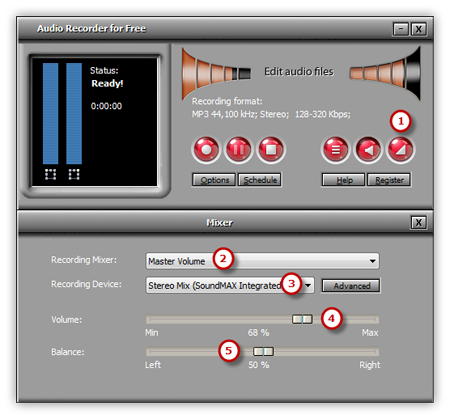
Launch Audio Recorder for Free. Click “Show Mixer Window” button to select the sound card in your system and choose “Stereo Mix” as sound source. You can adjust the Volume and Balance.
Step 2. Adjust Recording Settings
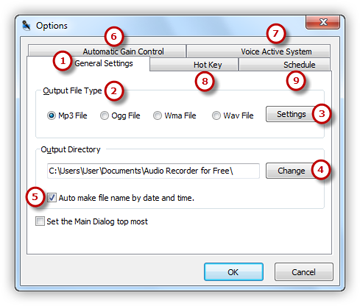
Click “Options” and a window will be activated. In “General Settings” area 1, you can specify an output format among MP3, WAV, WMA and OGG 2. Click “Settings” 3 to adjust the recording quality by well-configured presets or configuration parameters. Click “Change” to select an output folder. It also has the ability to name the recorded file automatically by date and time. Other settings like AGC, VAS, Hot Key and Schedule are also available.
Step 3. Start Recording
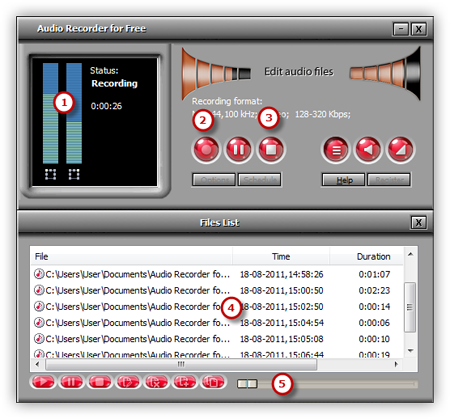
After everything is set, just play the Internet streaming file that you want to record. Then you can see wave variations in the wave pattern. If the volume is too low, you can see only very small variations in the wave pattern. If the sound is being clipped off because the volume is too high, move the volume setting down until most of the volume range is displayed without clipping. Click the red round record button in Audio Recorder for Free or press the hotkey you just set to start recording. To stop the recording, click “Stop Recording” and the recorded sound will be directly output to the output folder & listed in the file list with detailed information like filename, location, time, duration & size. You can play the recording with the built-in player.